Step 5 of 8
Compatibility rules
Tell Guidecom which products work together so shoppers never end up with a setup that doesn't fit.
Before you start
Your configurator categories are set up (Step 3). From the Guidecom dashboard, click Rules in the left sidebar.
How compatibility works:Guidecom checks compatibility at the brand level first (e.g., do Fanatec wheels work with Moza wheelbases?), then lets you override that at the product level for exceptions. Most of your work happens in the brand-level matrix — product overrides are for edge cases.
Pick a category pair
1
At the top of the Rules screen, use the Compatibility Matrix dropdown to pick which two configurator categories you want to set rules for.
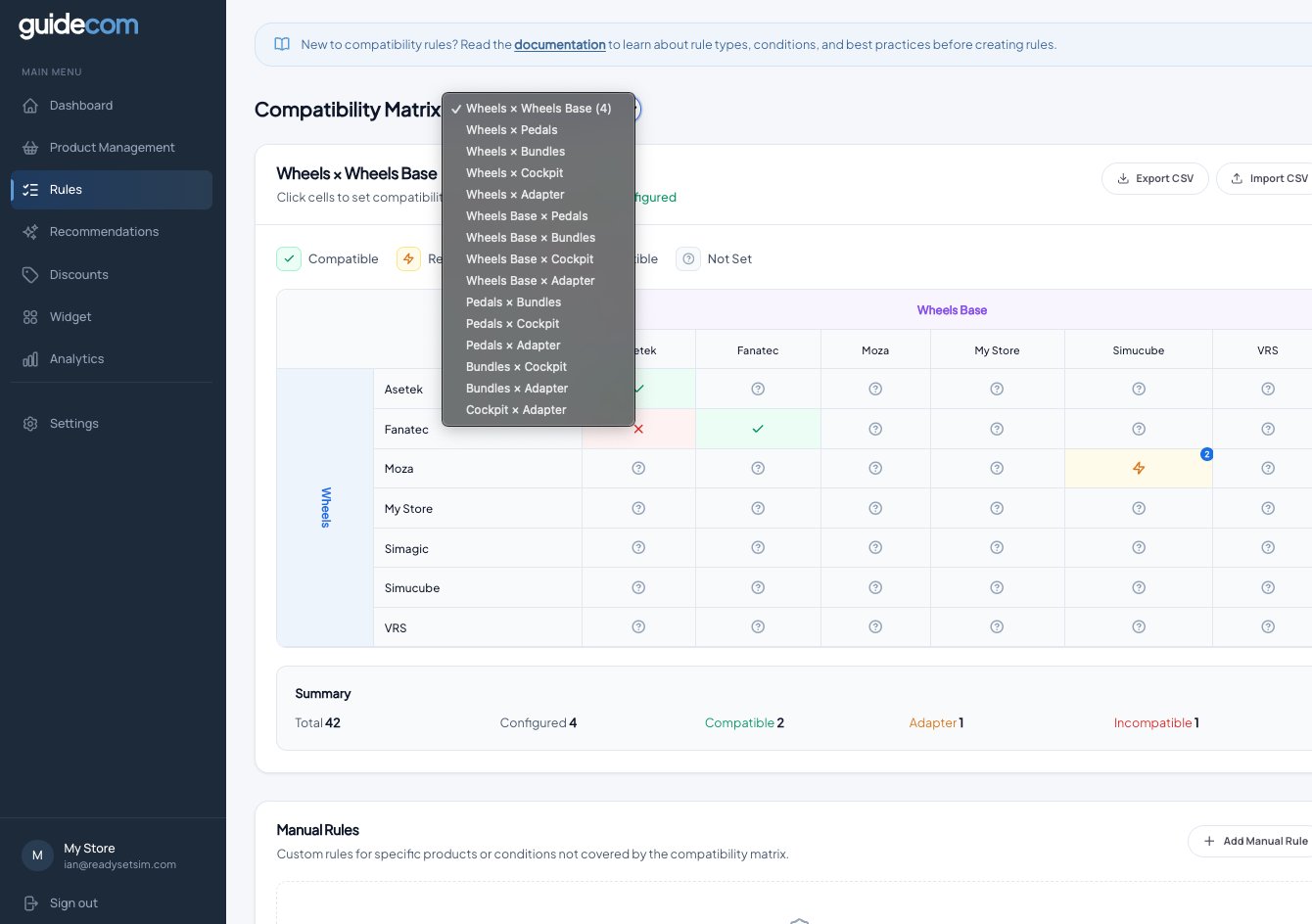
The dropdown lists every possible category pair. The number next to each tells you how many rules you've already configured.
Set brand-level rules in the matrix
Each cell in the matrix represents one brand-to-brand combination. You have four options for each cell:
2
Click any cell in the matrix to open its settings. A modal opens showing the two brands and the direction of the relationship.
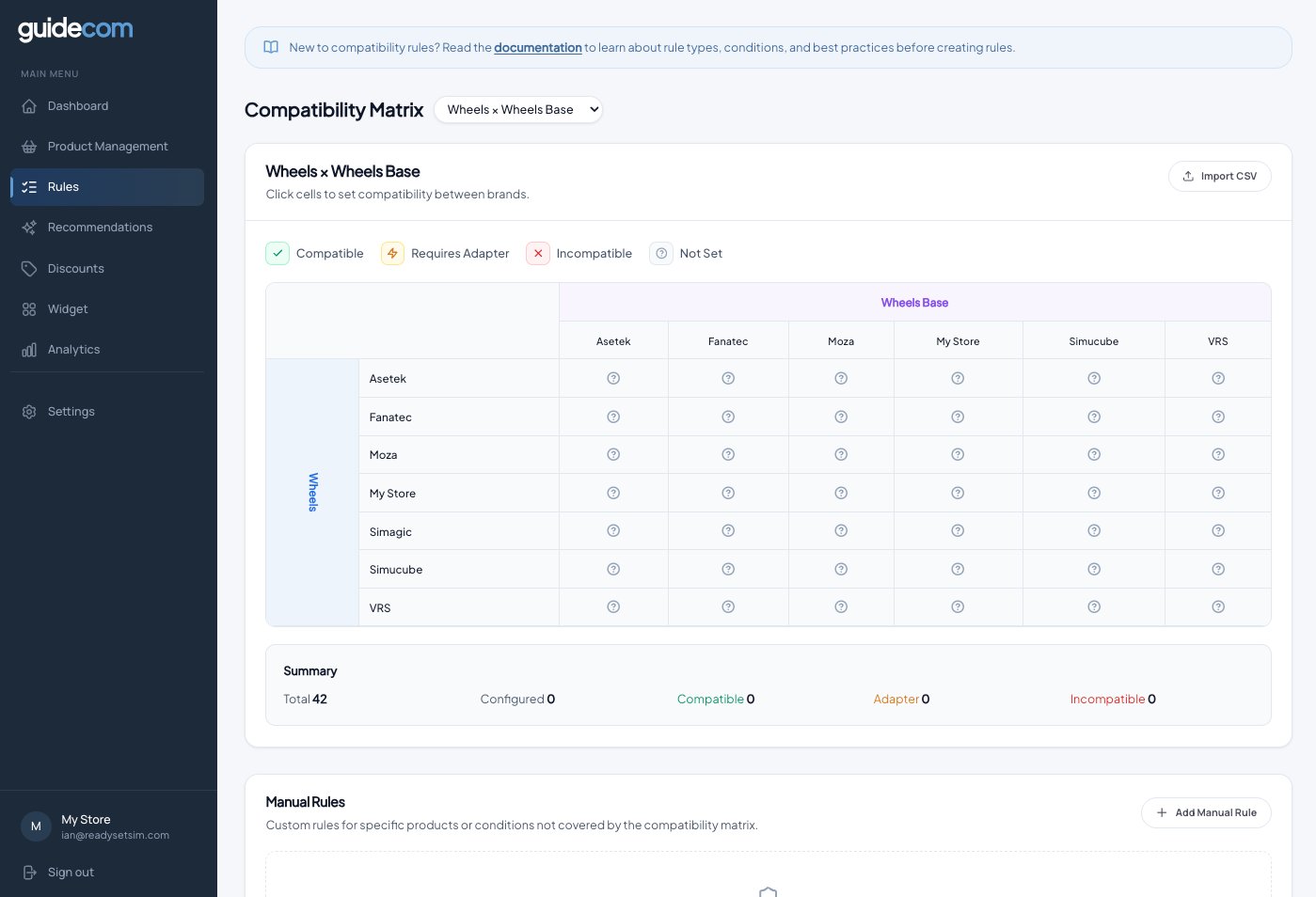
The matrix for Wheels × Wheels Base. Each "?" cell means no rule has been set yet.
3
Pick the right status: Compatible, Incompatible, or Requires Adapter. You can also leave it as "Not Set" if you're not sure — shoppers can still build with those two brands, they just won't get any guidance about it.
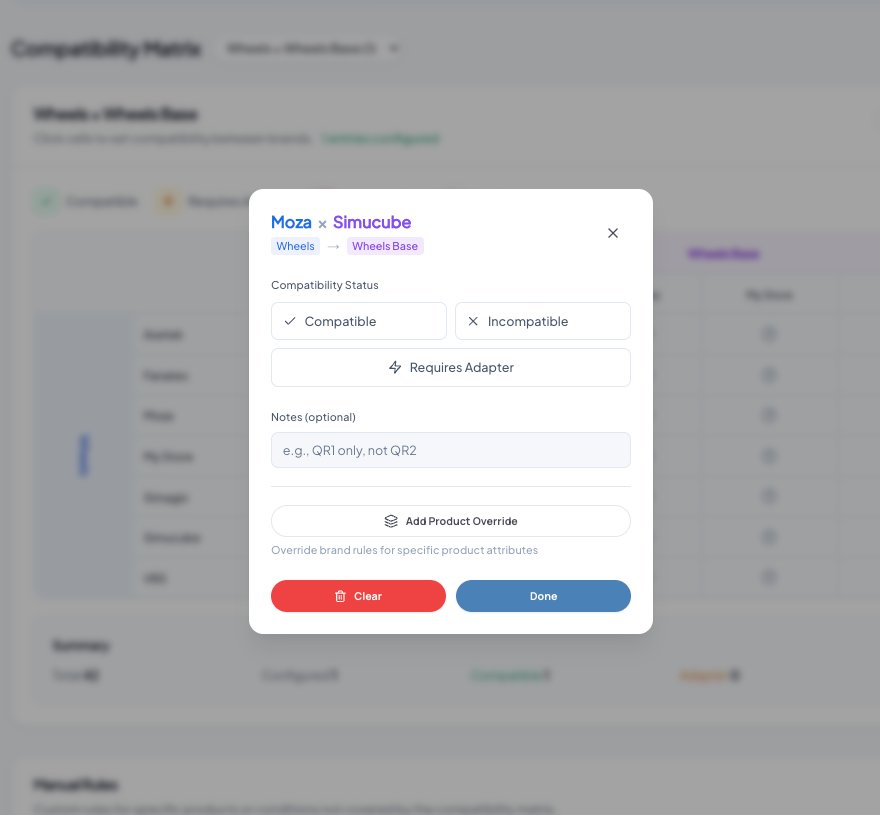
The status modal for Moza × Simucube. Notes are optional but useful for remembering why you set a rule the way you did.
4
If you pick Requires Adapter, a product search appears. Search for the adapter products that make this combination work. Adapters just need to be in your Shopify catalog and synced — they don't need to be assigned to a configurator category.
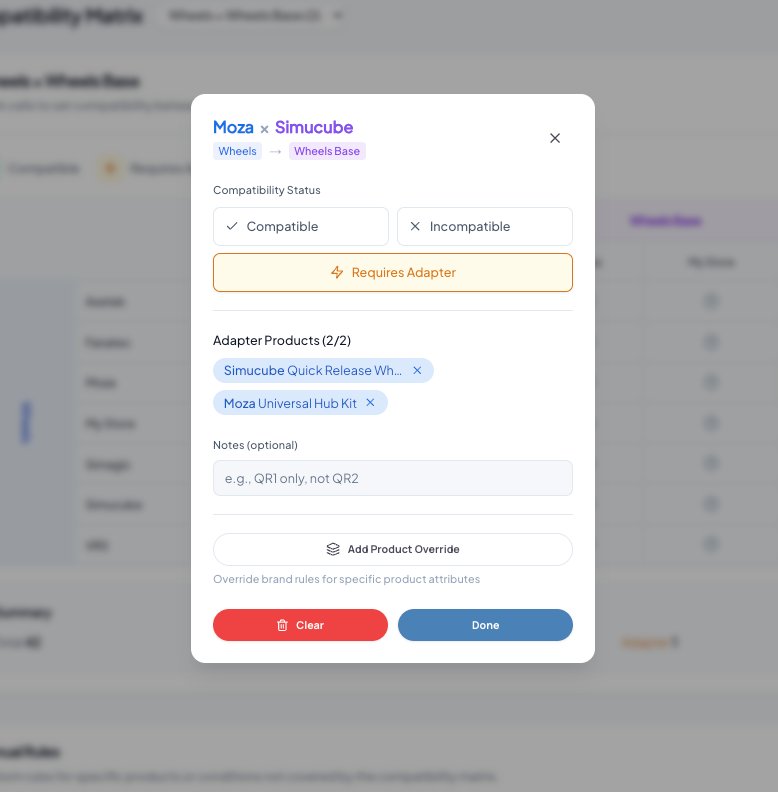
Two adapters selected for the Moza × Simucube combination. These will be added to the cart automatically when a shopper picks that pairing.
Override rules for specific products
Sometimes a specific product doesn't follow its brand's general rule. A Moza R12 might need a different adapter than other Moza wheels, or a Fanatec product might work with something other Fanatec products don't.
5
Inside any compatibility modal, click Add Product Override to open the product-level override panel. Pick the source product(s) that trigger the override, optionally narrow it to specific target products, set the override status, and add adapter products if needed.
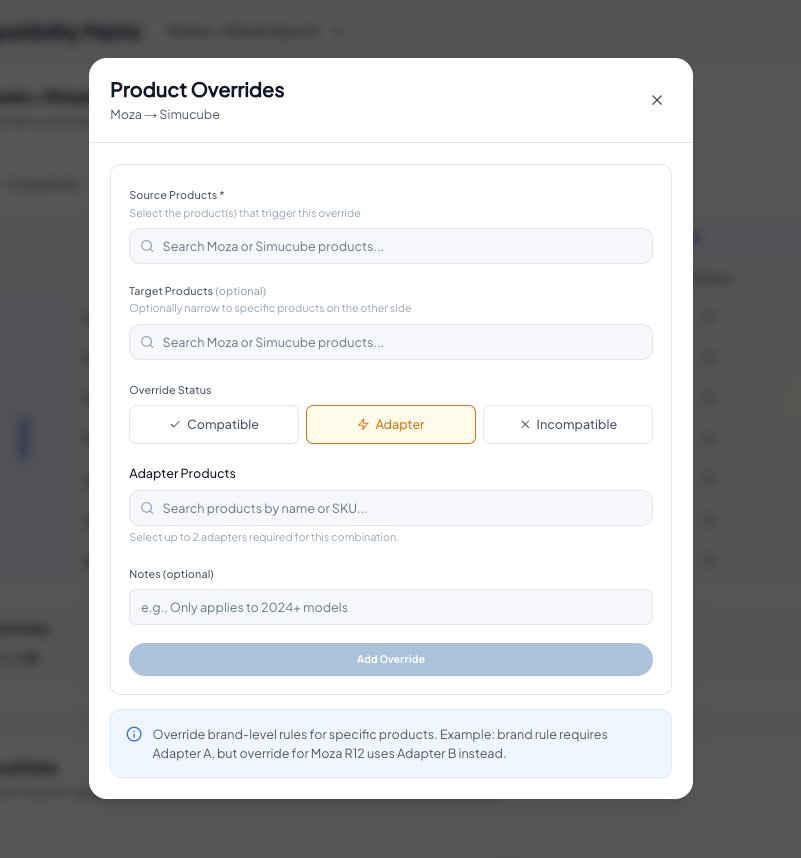
The product override panel. Use this sparingly — brand-level rules handle most cases.
Import rules in bulk from a CSV
If you already have compatibility data in a spreadsheet, or you want to set up dozens of rules at once, use the CSV import instead of clicking each cell.
6
Click Import CSV at the top right of the matrix. A modal walks you through three steps: Upload, Preview, Confirm. The Upload screen includes a downloadable template pre-filled with all the brand pairs for the current category combination.
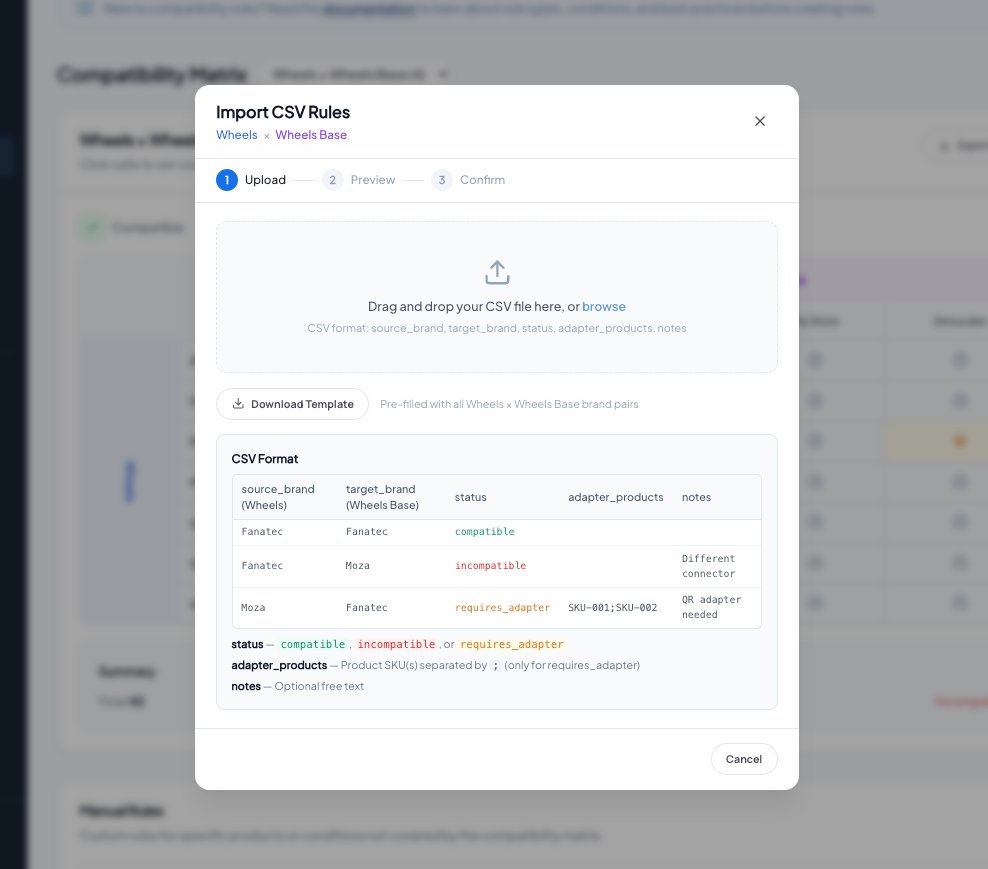
The Upload step. Download the template to see the exact format Guidecom expects.
7
After uploading, the Preview step validates your CSV. Valid rows are marked OK; rows with warnings show what went wrong (unknown brand, missing SKU, etc.) so you can fix them before importing.

The Preview step. Rows with warnings can still import, but any missing brands or adapter SKUs will be skipped.
Manual Rules section:You'll see a "Manual Rules" area below the matrix. That feature is being improved — leave it alone for now. We'll update this guide once it's ready.
What just happened
You've told Guidecom which brand combinations are compatible, which need adapters, and which don't work together at all. When shoppers build a setup, the widget will now guide them toward compatible choices, warn them about incompatibilities, and automatically add required adapters to the cart. You can come back to the Rules screen anytime to add more rules or refine existing ones.