Step 3 of 8
Creating configurator categories
Turn your Shopify collections into the steps shoppers move through in the configurator, then fine-tune which attributes they can filter by.
Before you start
Your products and collections have been synced from Shopify (Step 2). You're in the Product Management section of Guidecom.
What's a configurator category?Each configurator category becomes one step in the widget your shoppers interact with. For example, a sim racing setup might have categories for Wheelbase, Wheel, and Pedals — three steps, one category each.
Create your categories
1
Click the Configurator Categories tab at the top of the Product Management screen.
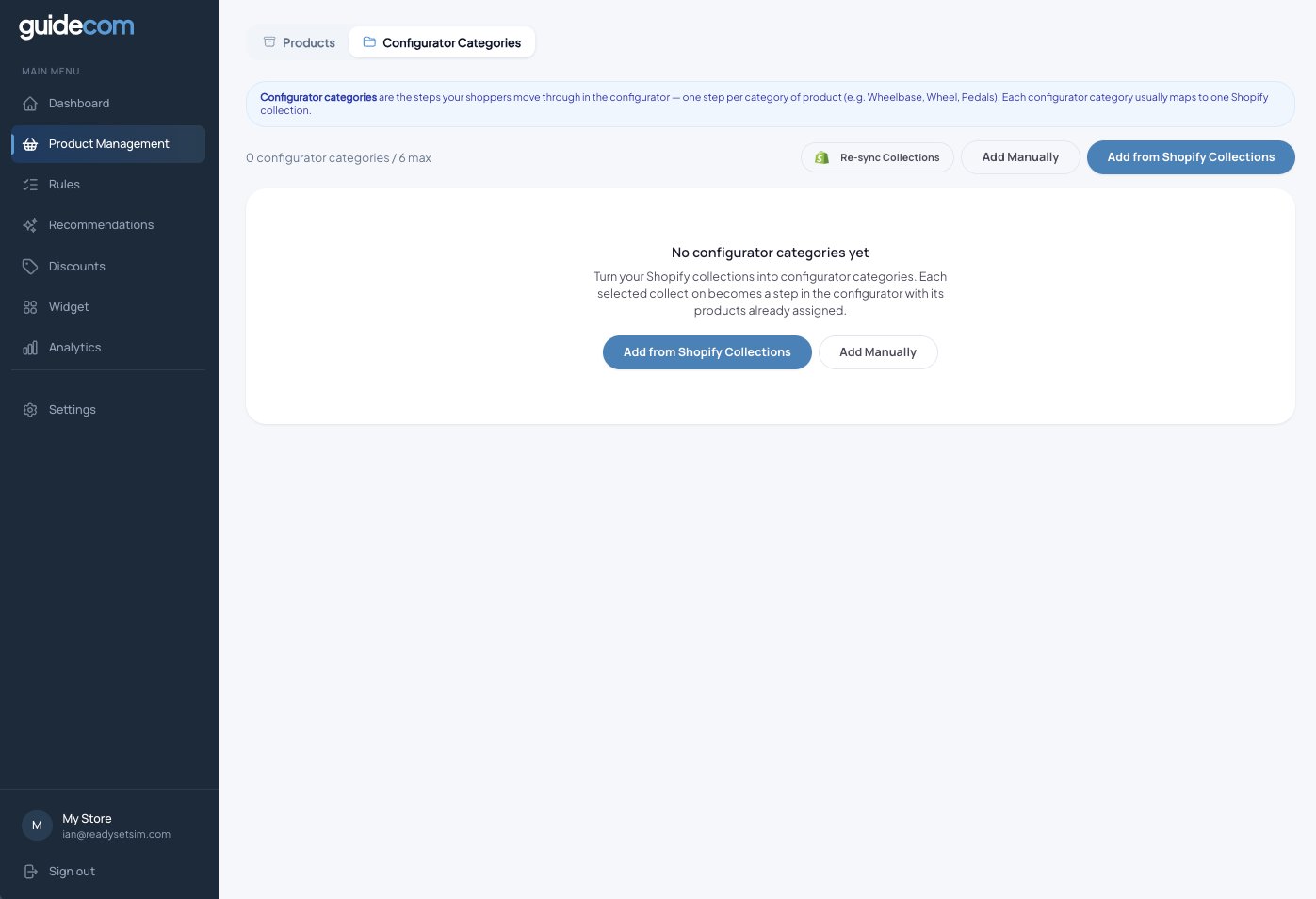
The Configurator Categories tab. On first visit you'll see an empty state.
2
Click Add from Shopify Collections to pull in your collections.
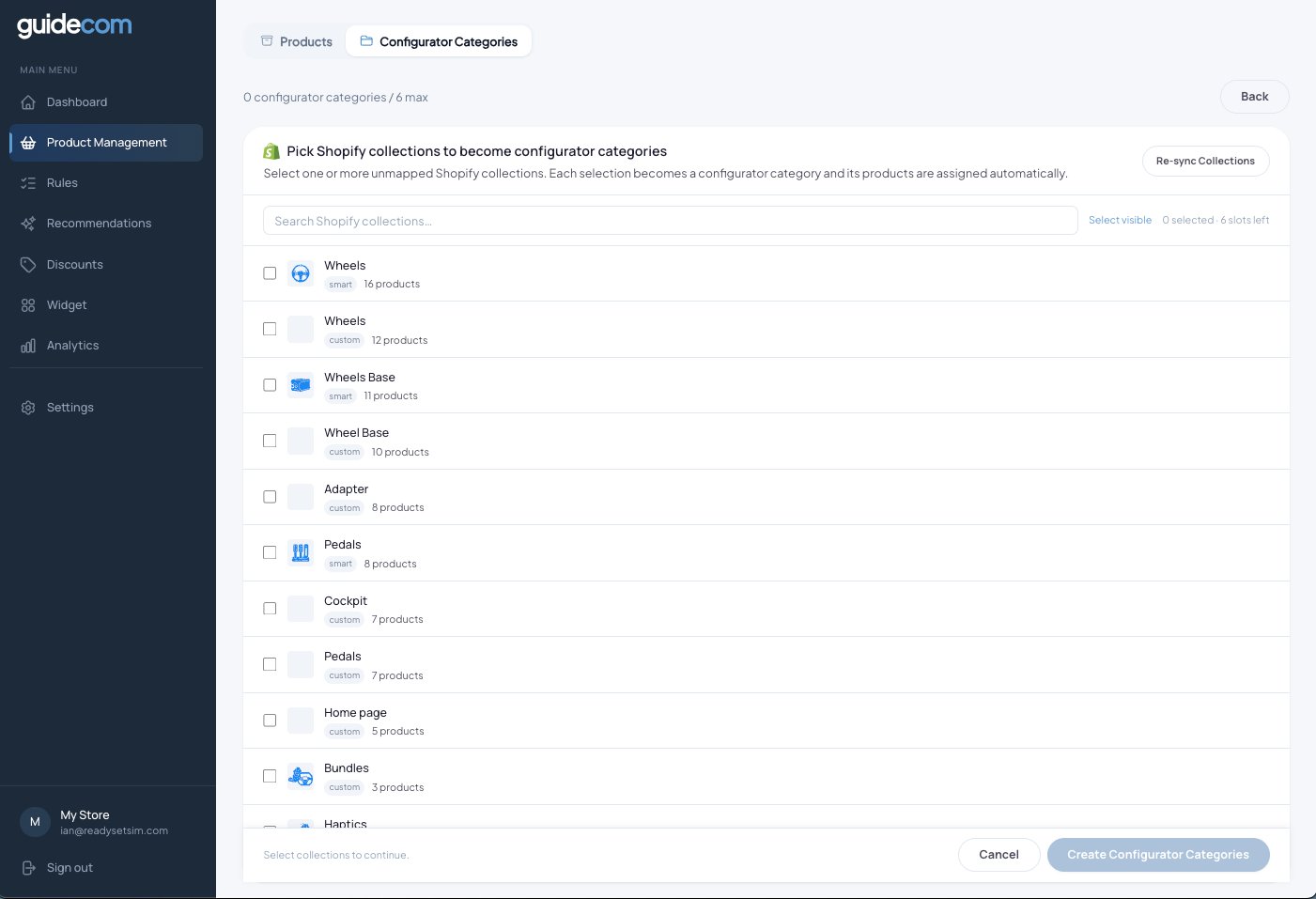
The collection picker. Each row is one of your Shopify collections, with a product count.
3
Check the collections you want to turn into configurator categories, then click Create Configurator Categories at the bottom.
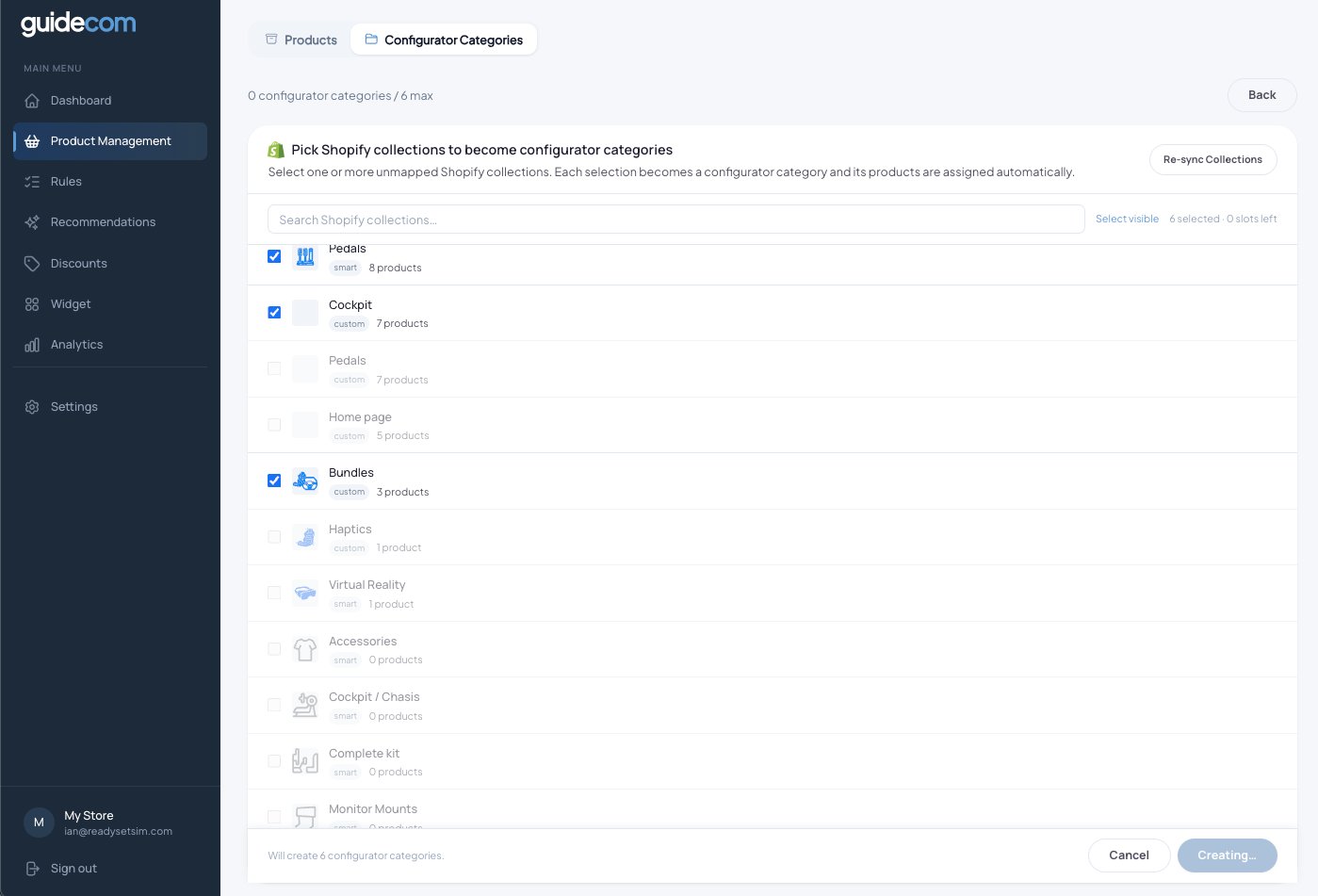
Six collections selected. Guidecom confirms the count at the bottom left.
Heads up —The number of configurator categories you can create depends on your plan. The Starter plan includes up to 6 categories. If you need more, you can upgrade or add the unlimited categories add-on.
4
Your new configurator categories appear in the list, each linked back to its Shopify collection. Products from that collection are automatically assigned to the category.
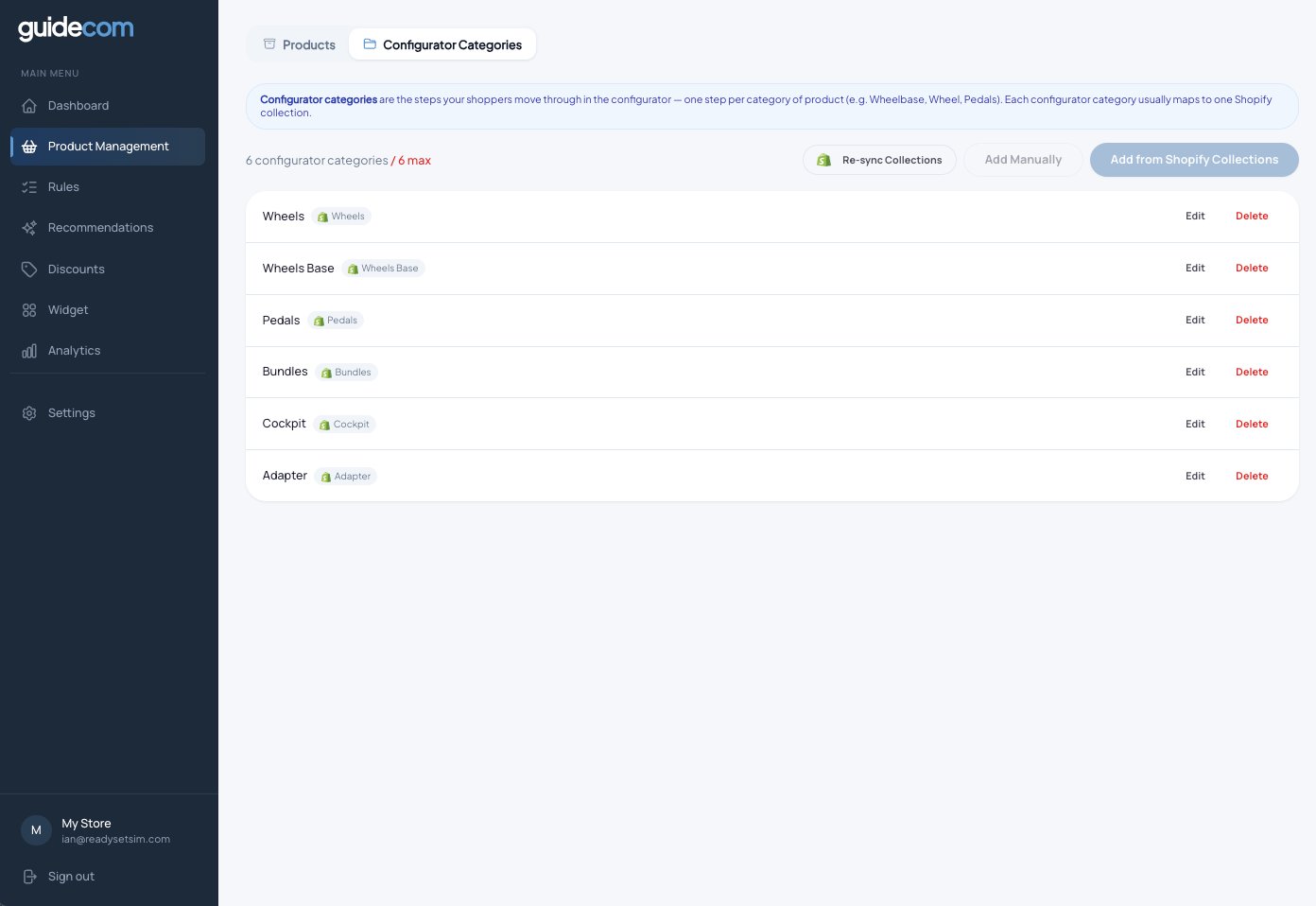
Six configurator categories created, each linked to its source Shopify collection.
Edit a category's attributes
Each category has a set of product attributes that Guidecom pulls automatically from your Shopify product data, including metafields. You choose which ones shoppers can filter by and which appear in product details.
5
Click Edit on any category to open its settings.
6
On the Edit screen you can rename the category, add a description, and manage its attributes. Each attribute has two toggles: Filterable (shows up as a filter in the widget) and Details (shows up on the product detail card).
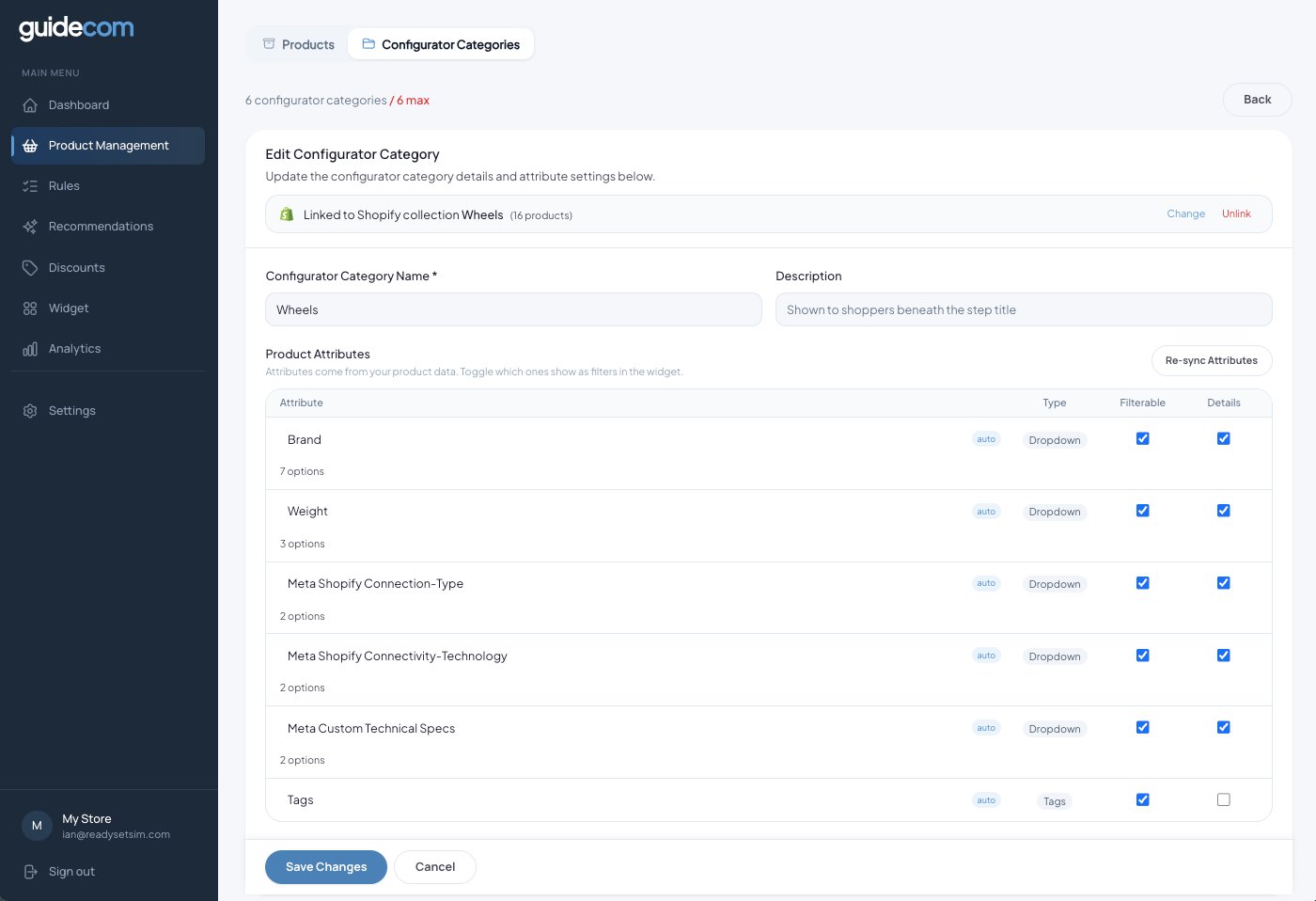
Editing the Wheels category. Attributes are pulled from your Shopify metafields and product tags.
Tip:Click the attribute row to expand it and see all the options Guidecom detected. If an attribute is missing, it means the products in this collection don't have that metafield populated in Shopify.
7
Click Save Changes when you're done. Repeat for each category as needed.
What just happened
You've turned Shopify collections into configurator categories — each one becomes a step in the widget. Attributes were pulled automatically from your product data, and you've chosen which ones shoppers can use to filter and which ones appear in product details. Next, you'll customize how the widget itself looks and feels.