Step 2 of 8
Syncing products
Pull your Shopify products and collections into Guidecom so you have something to work with.
Before you start
Your Shopify store is set up with the products and collections you want to sell through Guidecom. You're in the Guidecom dashboard.
1
From the dashboard, click Product Management in the left sidebar.
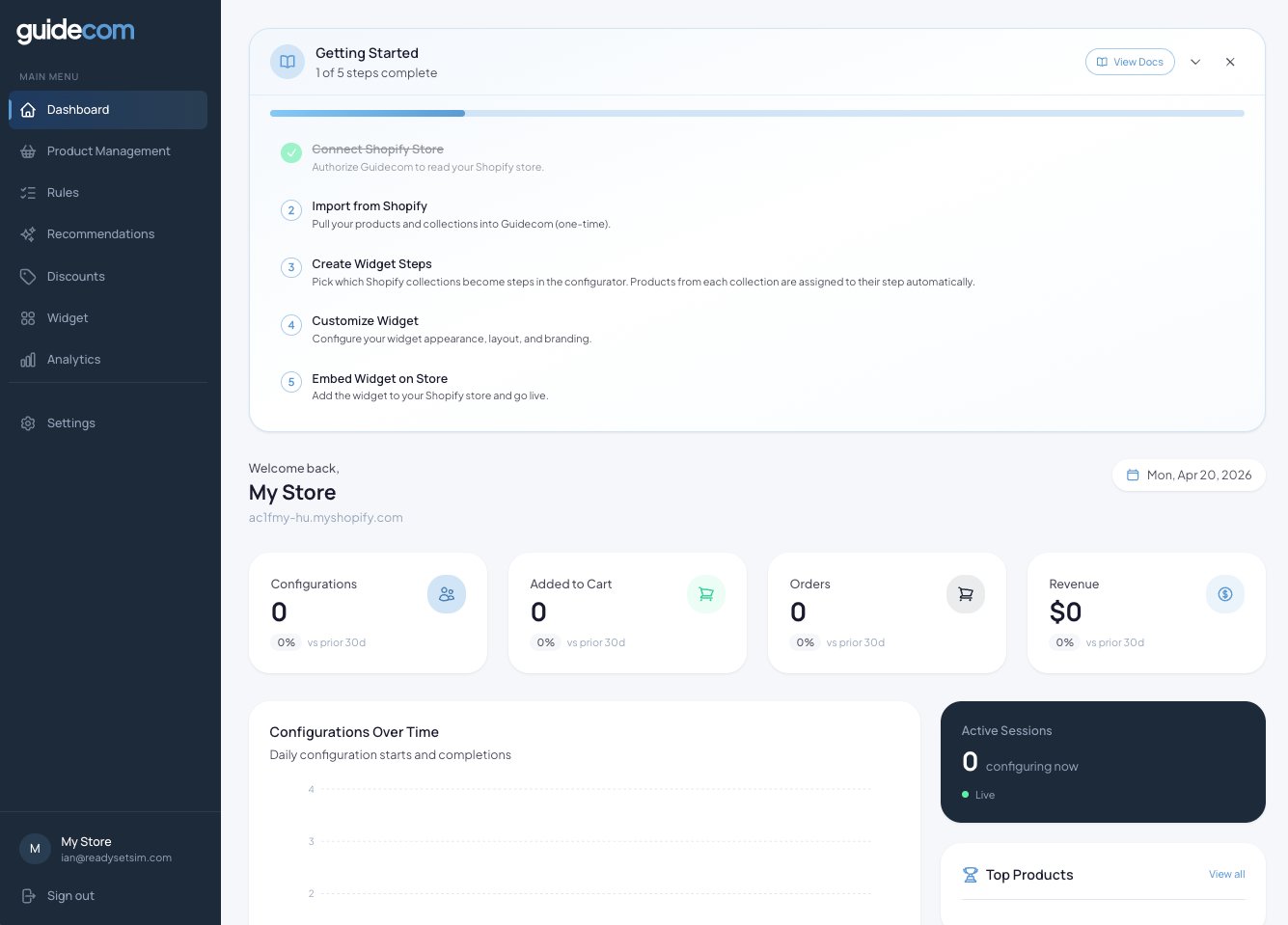
The Guidecom dashboard. Product Management is the second item in the left sidebar.
2
You'll land on the Import from Shopify screen. Click Sync from Shopify to start pulling in your catalog.

The Import from Shopify screen. This runs once — after that you can re-sync products or collections separately.
Heads up —Depending on how many products you have, the sync may take a few minutes. Leave the page open while it runs.
3
Once the sync completes, you'll see your full product list, along with a count of products and collections imported.
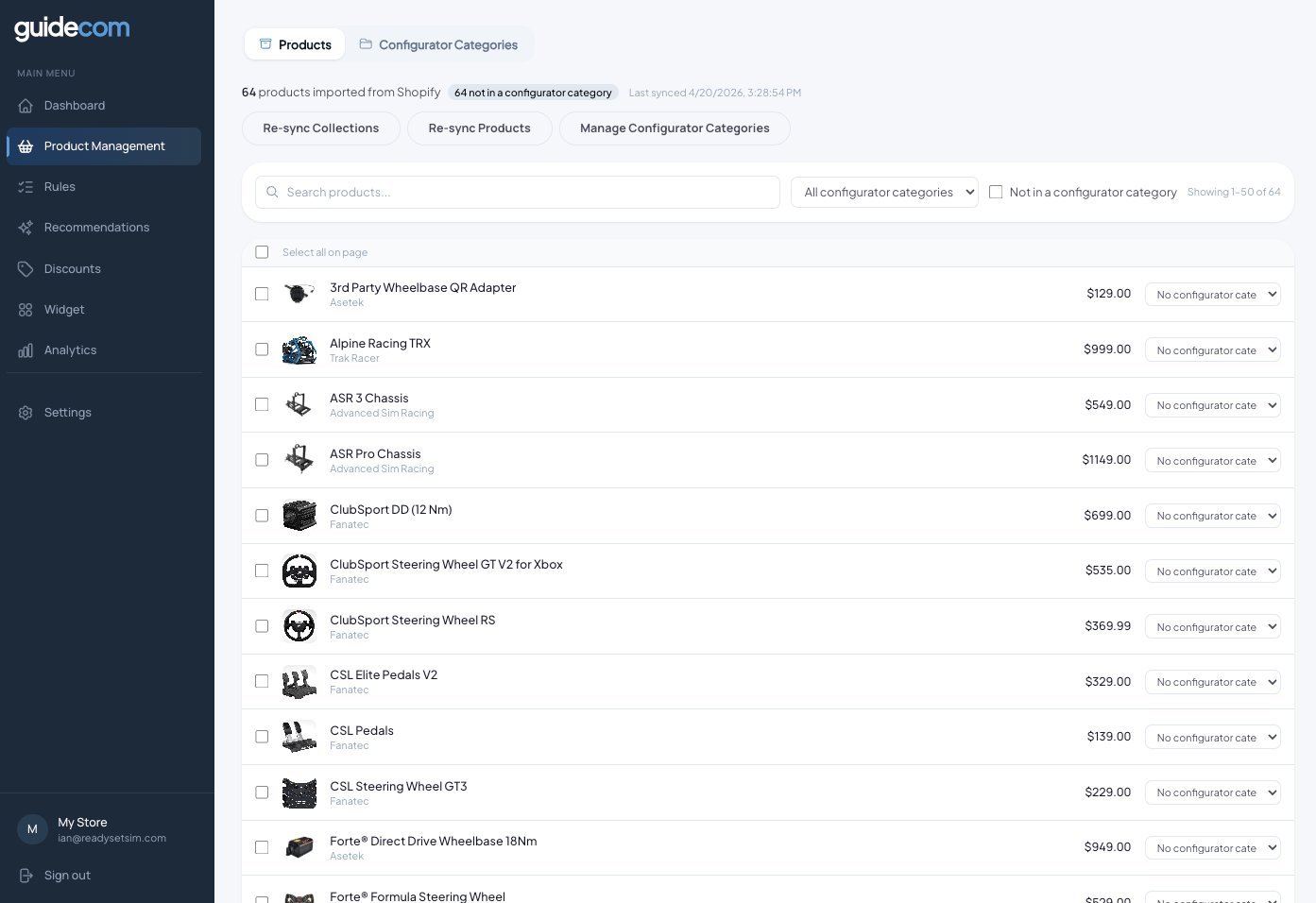
Sync complete. Your Shopify products are now in Guidecom, ready to be organized.
What just happened
Guidecom pulled in every active product and every collection from your Shopify store. Nothing is categorized or assigned yet — that's what the next step handles. You can re-sync products or collections separately anytime using the buttons at the top of this screen.