Step 1 of 8
Opening the Guidecom dashboard
Open Guidecom from inside your Shopify admin so you can start setting up your guided selling experience.
Before you start
Guidecom has been installed on your Shopify store. You're logged into your Shopify admin.
1
From your Shopify admin, find Apps near the bottom of the left sidebar and click it.
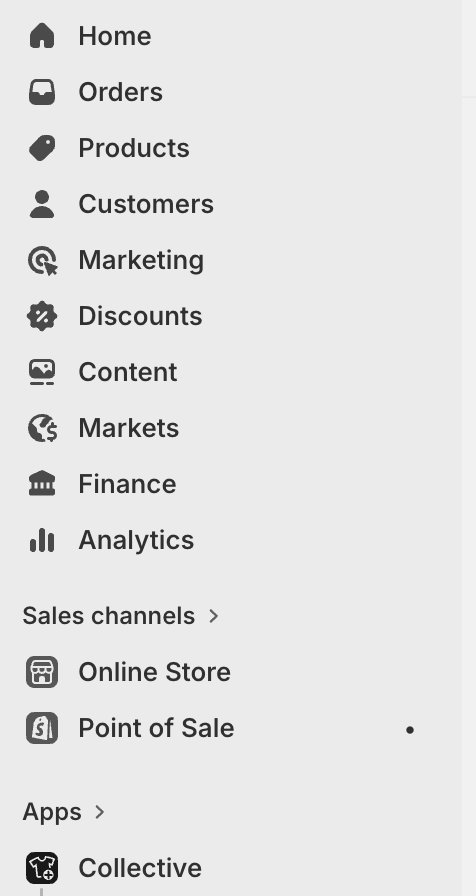
The Shopify admin left sidebar. "Apps" appears near the bottom.
2
The Apps menu opens with a list of installed apps. Click Guidecom - [your store name] to open the Guidecom dashboard.
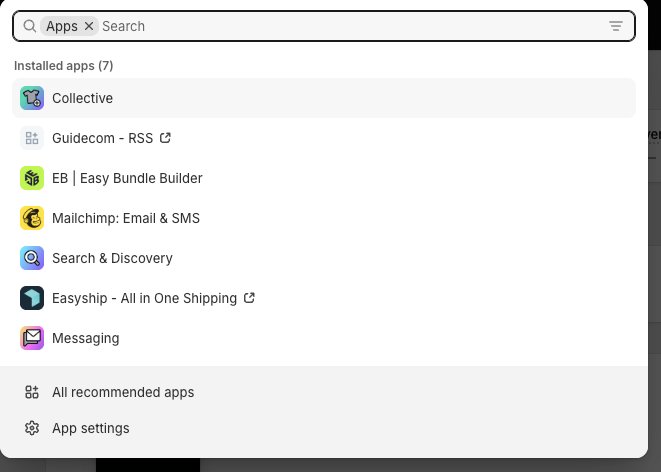
Your installed apps. Guidecom appears in the list with your store name appended.
Tip:If you don't see Guidecom in the list, Guidecom may not be installed on this store yet. Check with whoever sent you this guide for an install link.
3
The Guidecom dashboard loads. You'll see a Getting Started checklist at the top and your store stats below.
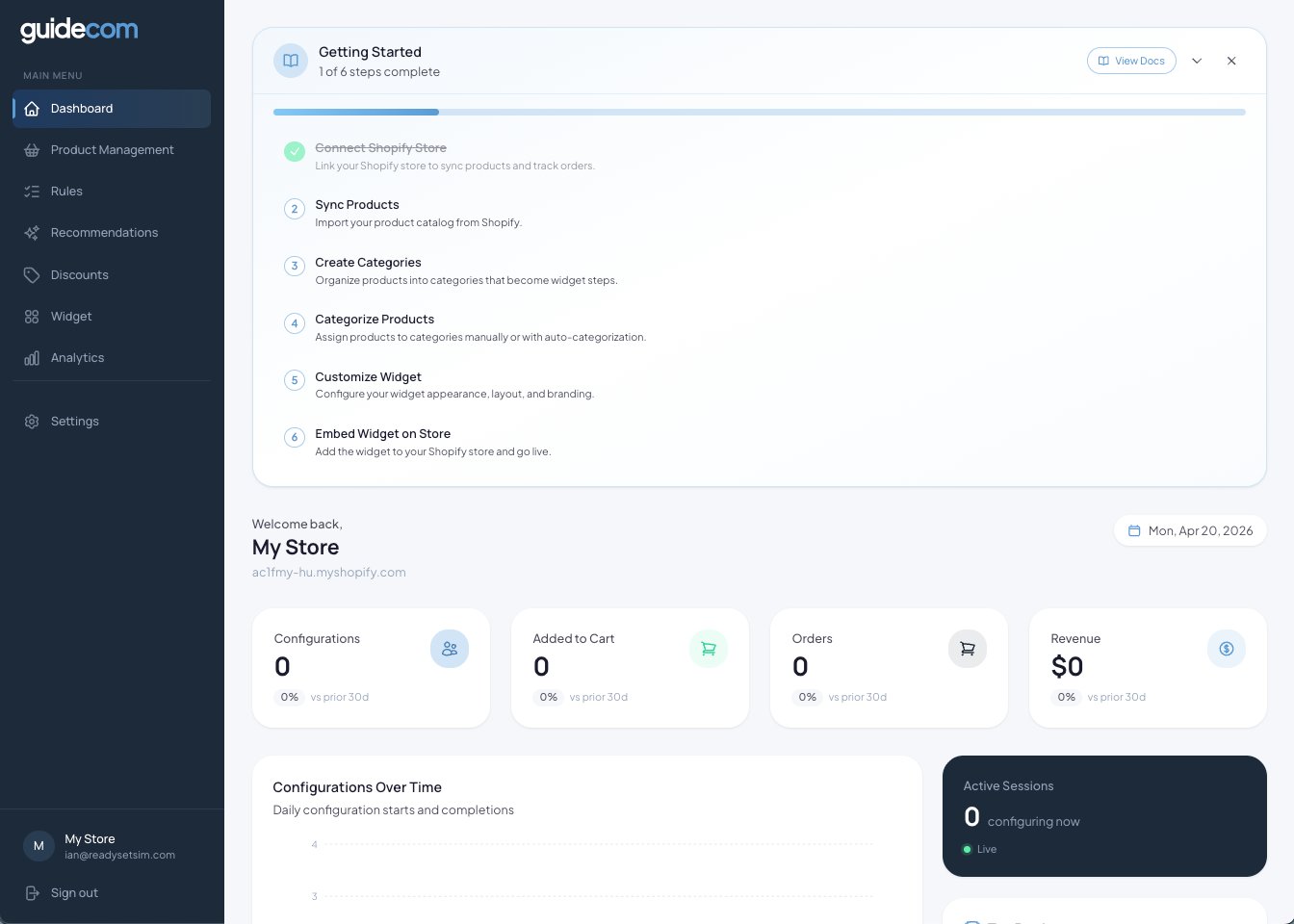
The Guidecom dashboard. This is where you'll spend most of your time managing your guided selling experience.
What just happened
You've successfully opened Guidecom from your Shopify admin. Guidecom lives inside Shopify, so every time you want to make changes you'll open it the same way — through the Apps menu. Your customers never see this side of things; this is your admin view only.