Step 6 of 8
Embedding the widget on your storefront
Drop a short code snippet into your Shopify theme to go live.
Before you start
Your widget is customized (Step 4) and your compatibility rules are in place (Step 5). You have admin access to your Shopify theme editor.
Good news:The Embed tab in Guidecom has your code snippet and the exact Shopify steps right on screen. This guide just explains what's happening so you know what to expect.
1
In the Widget Configurator, click the Embed tab on the left. You'll see your code snippet and a numbered list of instructions.
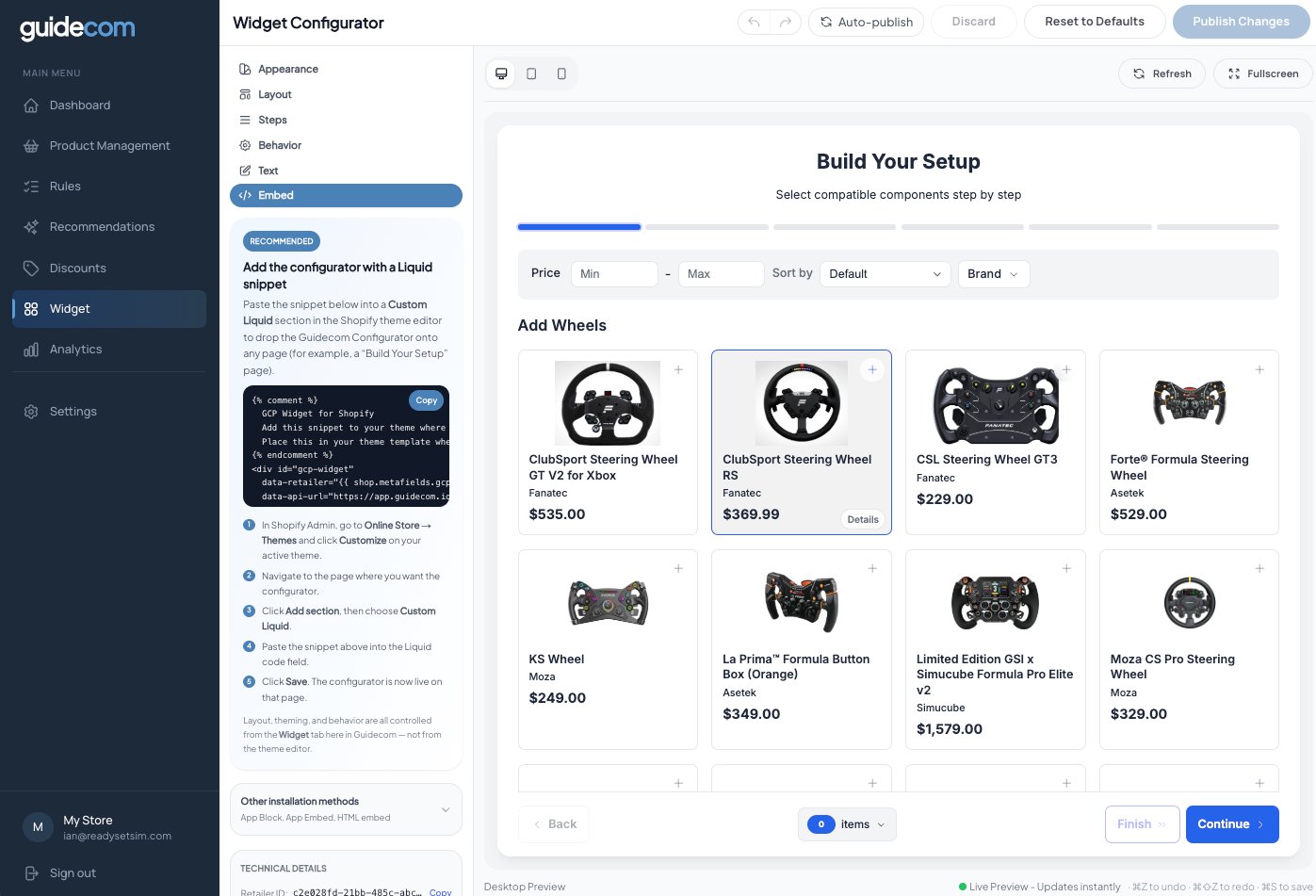
The Embed tab. Your code snippet is pre-filled with your retailer ID — no editing needed.
2
Click Copy on the code snippet. This is a Liquid snippet pre-configured for your store.
3
Follow the five on-screen steps to paste the snippet into your Shopify theme. In short: open your theme editor, navigate to the page where you want the configurator (typically a "Build Your Setup" page), add a Custom Liquid section, paste the snippet, and save.
Where should the configurator live?Most retailers put it on a dedicated page like /pages/build-your-setup or /pages/configure. You can also embed it on collection pages or anywhere else that makes sense for your store. Just remember — wherever you paste the snippet, that's where the widget appears.
Heads up —Don't edit the code snippet itself. The layout, theming, and behavior are all controlled from the Widget tab in Guidecom, not from the theme editor. If you need to change how the widget looks or acts, go back to Step 4.
Other installation methods
The Liquid snippet is the recommended method for most stores. If your theme doesn't support Custom Liquid, or you want to install the widget a different way, open the Other installation methods section at the bottom of the Embed tab. You'll find instructions for App Block, App Embed, and HTML embed.
What just happened
Your configurator is now live on your storefront. Shoppers visiting the page where you pasted the snippet will see the widget exactly as you designed it in Step 4, with the compatibility rules from Step 5 guiding their selections. Any changes you publish from the Widget tab will update the live widget immediately — no need to re-paste the snippet.